How it works
What you can do in the editor
For when you want to style your invitation yourself. Tap a heading to open that section. No need to read it all.
Get to know the screen
When you open the editor.
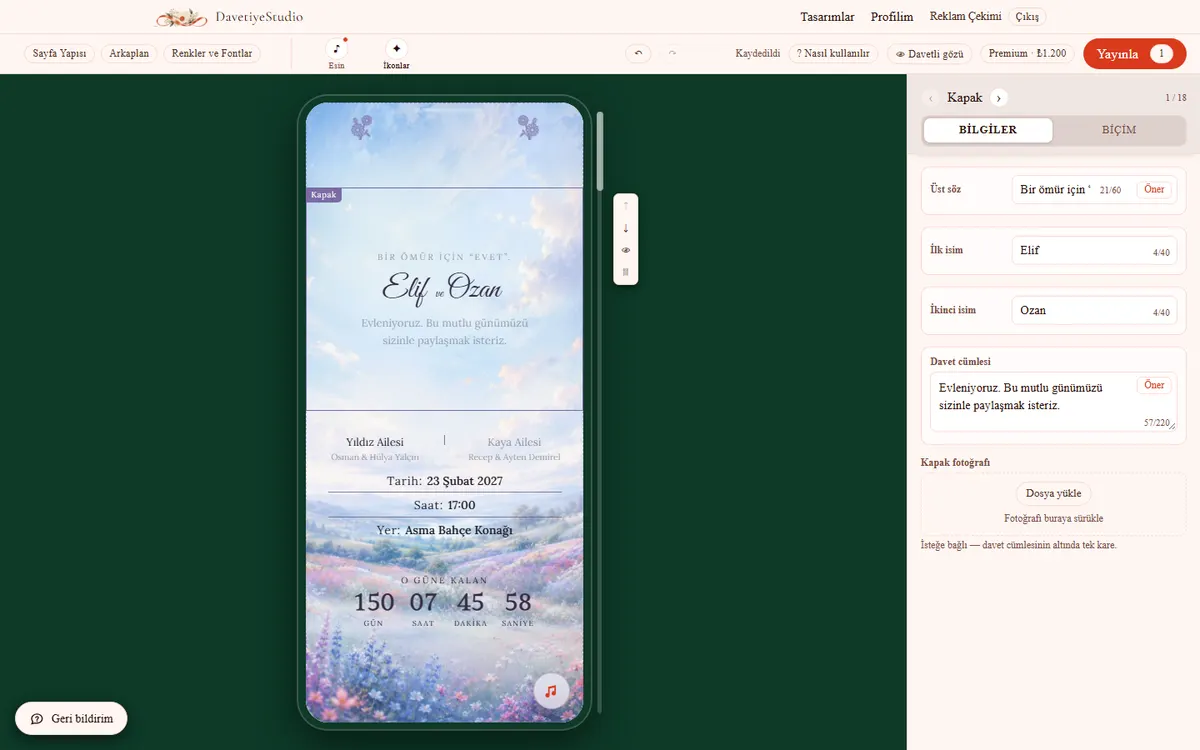
- Phone in the middle: what guests see. Click a block to select it.
- The selected block’s name shows in its top left corner.
- Block panel on the right: text in the Content tab, look in the Style tab.
- Four buttons beside a block: up, down, hide, delete.
- Five panels on top: Page structure, Background, Colors & fonts, Music, Icons.
- Undo: Ctrl+Z. Redo: Ctrl+Shift+Z.
- If it says “Saved”, everything is saved.
- Stuck? Tap “? How to use”. The matching section of this guide opens in a new tab.
- A hidden block isn’t deleted. Guests don’t see it; you can turn it back on.
- Open it on a phone and a screen appears: “Edit my details” or “Edit here anyway”.
Pages and blocks
Page structure panel.
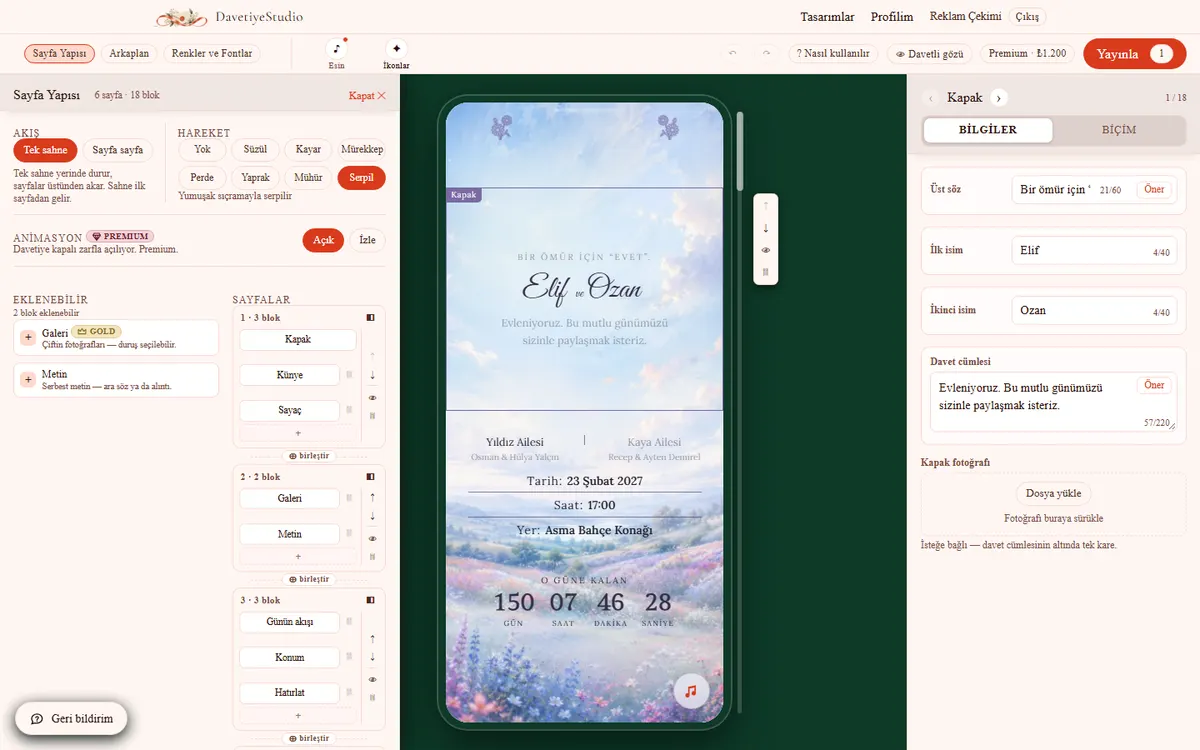
- Blocks you can add on the left. Tap plus to add one.
- Pages and their blocks on the right.
- Move with the arrows, hide with the eye, delete with the bin.
- “merge” joins two pages into one.
- Blocks already in your invitation say “Added”.
Flow and animation
Page structure, top bar.
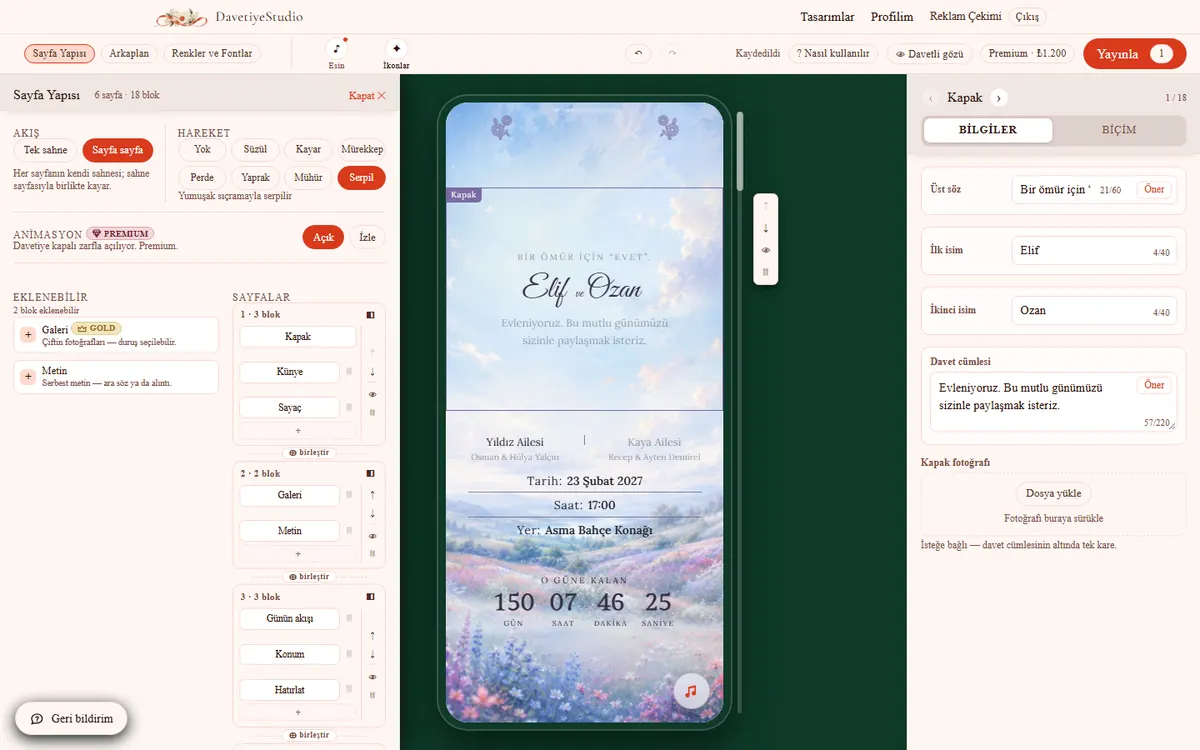
- Single scene: One scene stays in place while the pages scroll over it. The scene comes from the first page.
- Scene changes: The first scene stays in place. On a page you mark “New background”, a new scene arrives and stays put too.
- New background: in the Background panel, pick the page and turn on “New background”.
- Page by page: Each page has its own scene; the scene scrolls with its page.
- Animation: how blocks enter the screen. Tap one and it plays on the phone.
- With animation on, the invitation opens with an envelope. Premium.
Background
Background panel. Tabs: Scene, Gradient, Color.
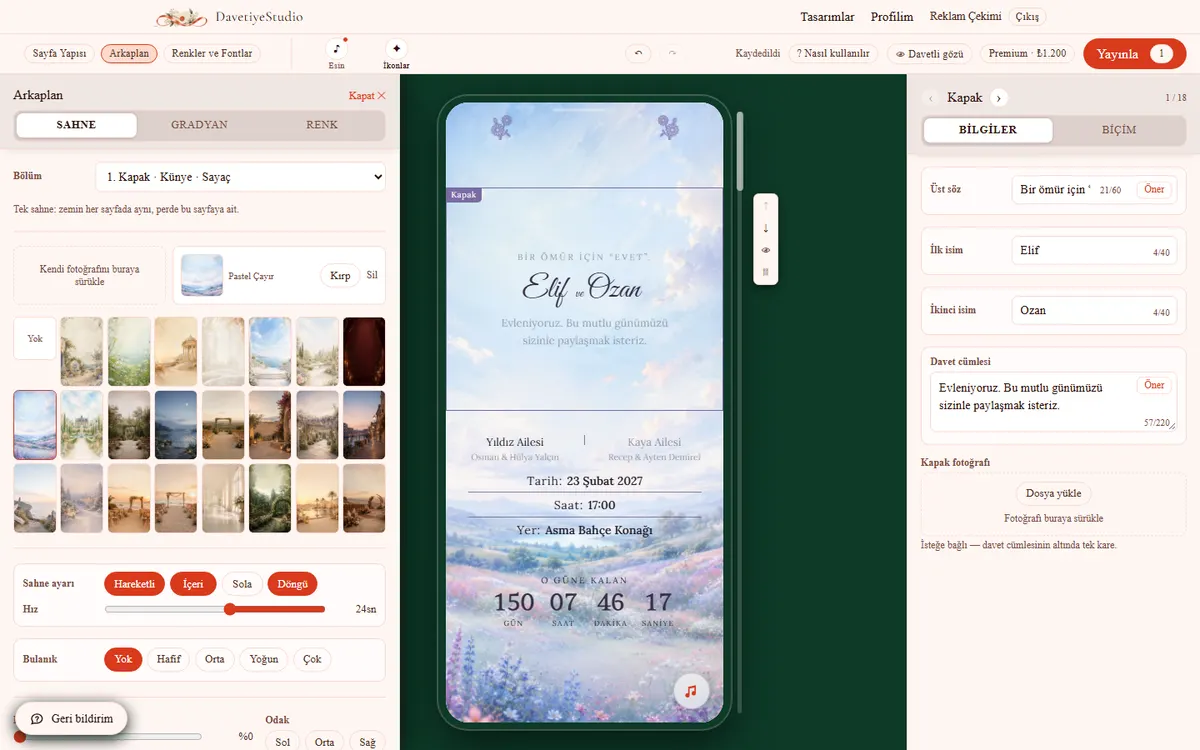
- First pick the page under “Section”.
- Click a ready-made scene or drag in your own photo.
- After uploading a photo, “Crop” opens. Adjust the framing.
- Moving scene: pick direction and speed.
- Text hard to read? Darken the overlay.
- In single-scene mode the backdrop covers the whole invitation; the overlay only that page.
Colors and fonts
Colors & fonts panel.
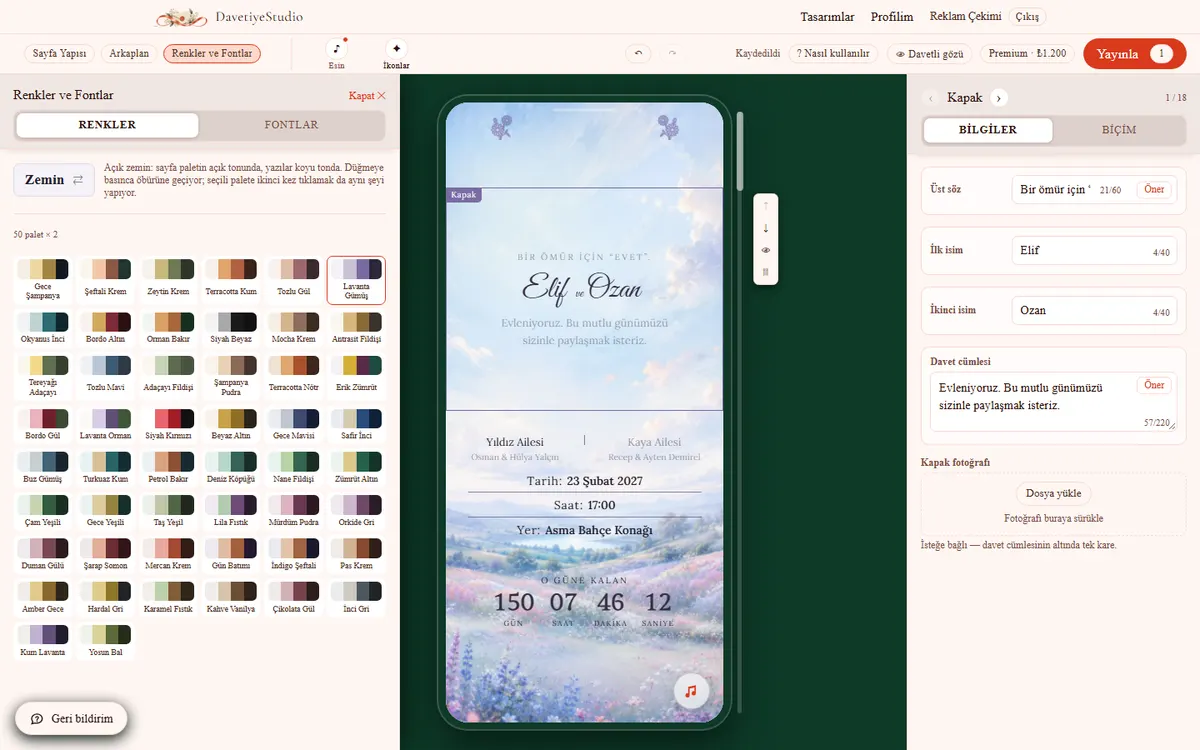
- Click a palette and the whole invitation changes.
- “Backdrop ⇄” flips between light and dark.
- Fonts tab: heading, script and body are picked together.
- Text size: drag the slider. All text grows together.
- To change a single text, use that text’s style bar.
Styling a single text
Block panel, Content: click a text box and a bar opens below it.
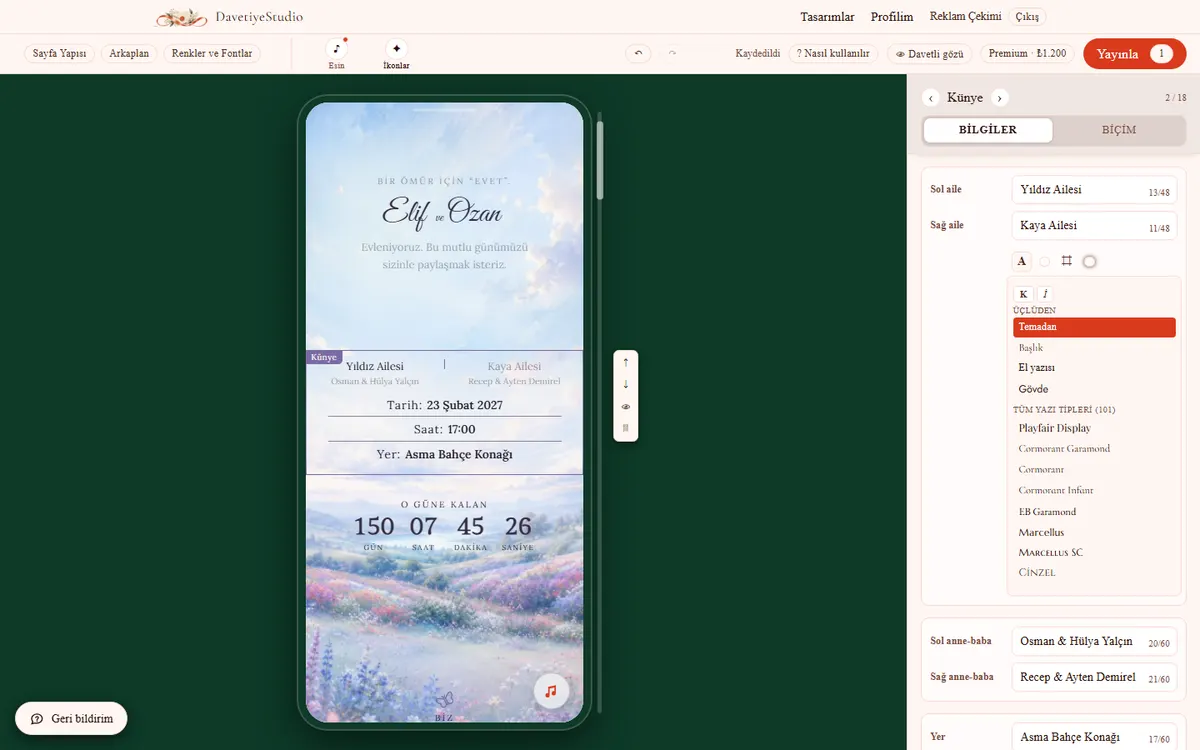
- A: font, bold, italic.
- Circle: text color.
- ⌗: size. “From theme” is right in the middle.
- Last button: behind the text, Glow or Band.
- Pick a role (Heading, Script, Body) and the text follows theme changes.
- Pick a specific font and that box breaks away from the theme.
If text over a photo is hard to read
Block panel, Style: “Contrast”.
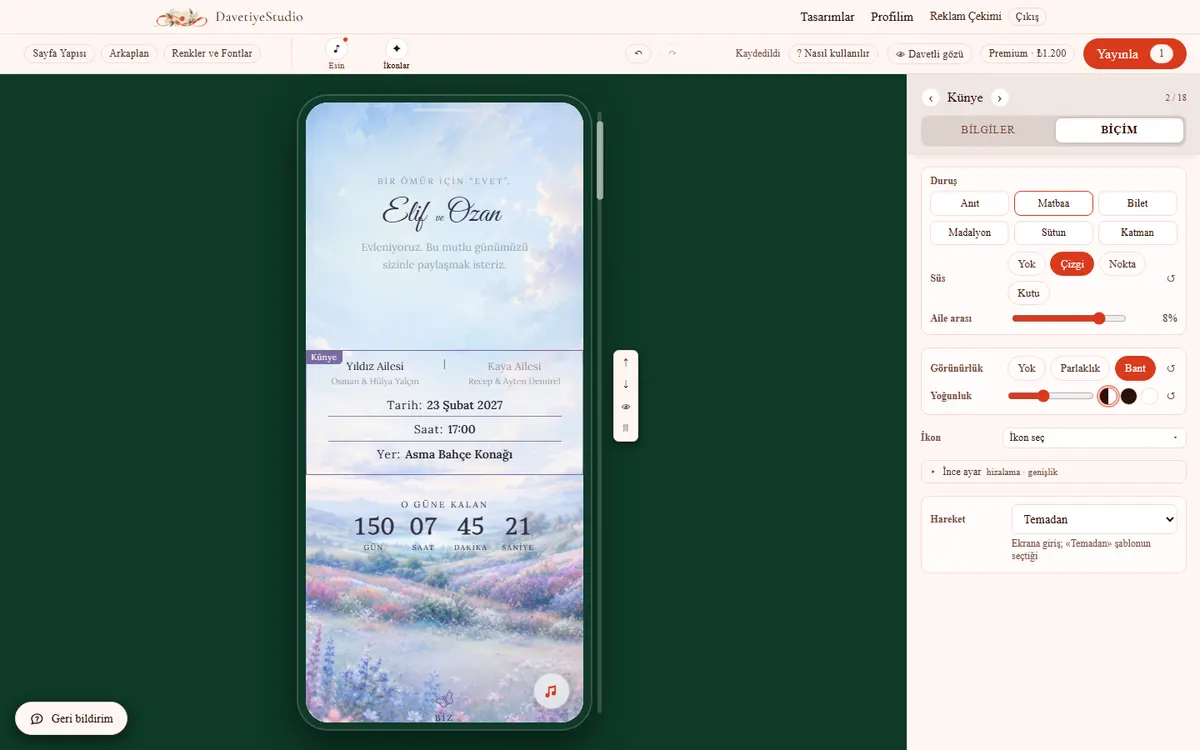
- Glow: a soft light behind the text.
- Band: a see-through strip behind the text.
- Pick one of the two.
- Strength: between 5% and 80%.
- Color: leave it on Auto. It matches the backdrop.
- The same option is in the text box’s bar too. There it applies to that box only.
- Tap “Guest view” to try it.
Decorative icons
Icons panel.
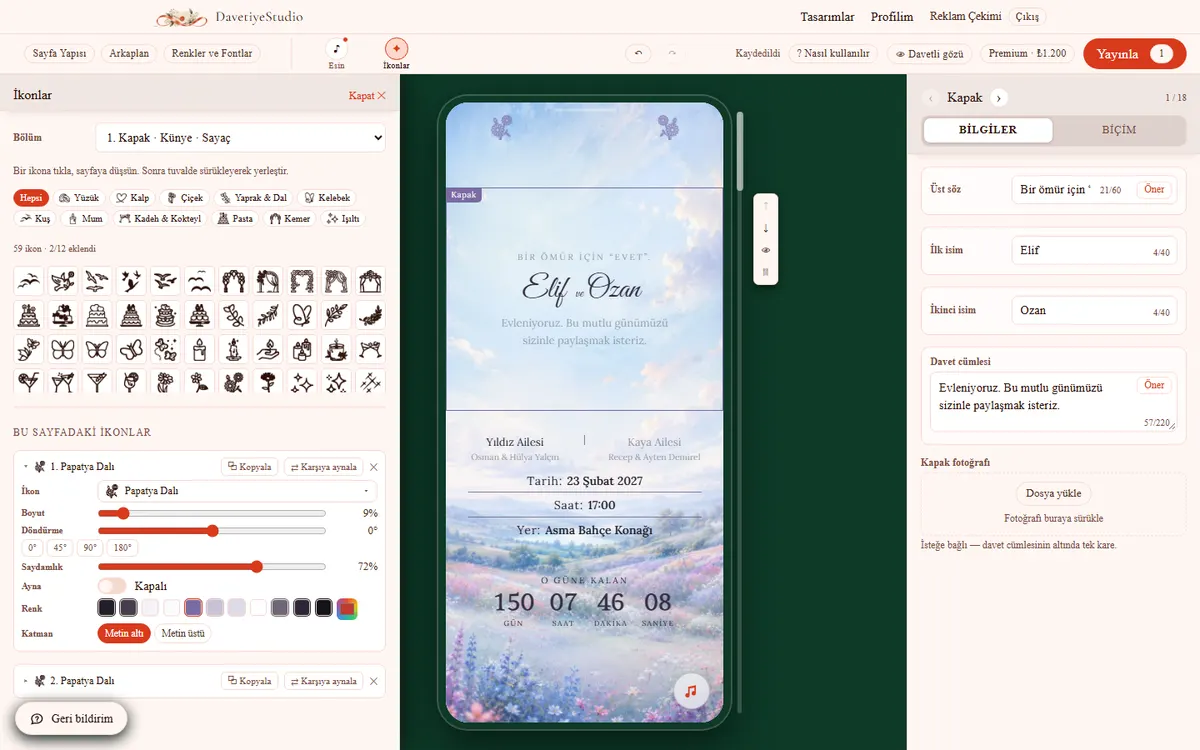
- First pick the page under “Section”.
- Click an icon and it lands on the page. Drag it into place on the phone.
- Adjust: size, rotation, opacity, mirror, color, layer.
- “Copy” adds an identical one. “Mirror opposite” adds its mirror image.
- Up to 12 icons per page.
Photos
Gallery block, Content.
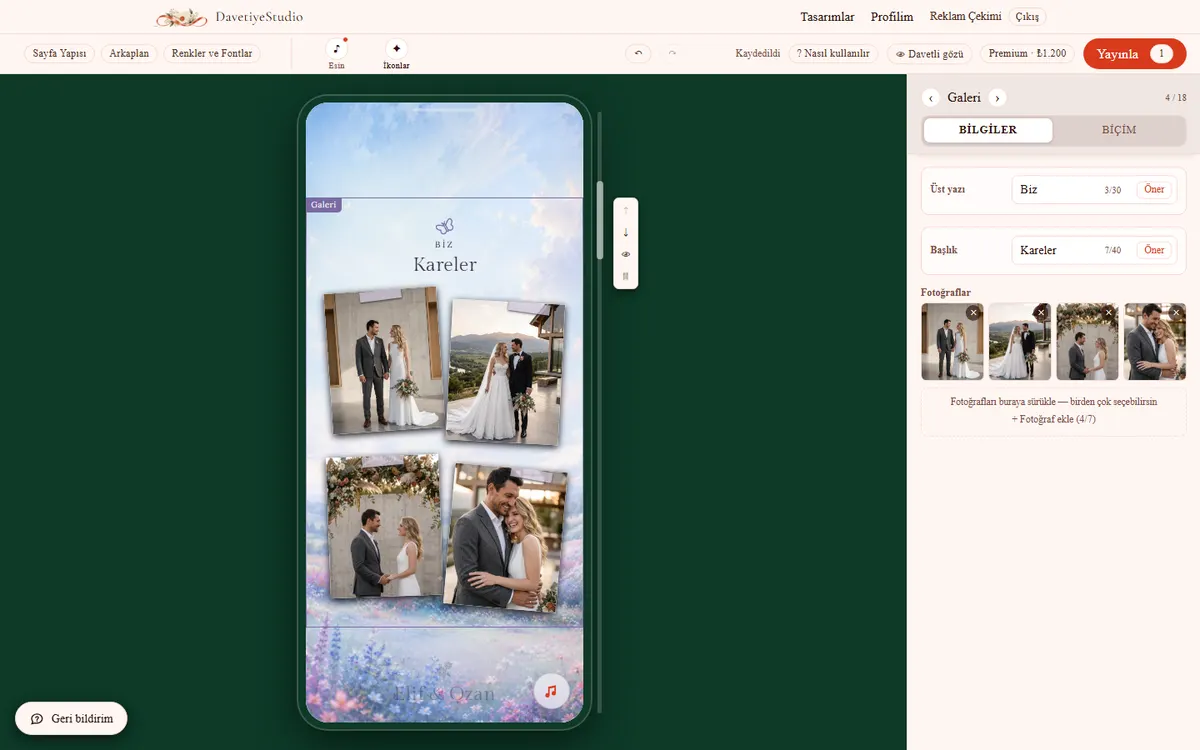
- Drag photos in or tap “Add photo”. Up to 7.
- Remove a photo with ×.
- Pick a layout in the Style tab and try it.
- Uploading a new photo resets the crop.
- Guests see photos go from blurry to sharp. That’s not a bug.
Music
Music panel.
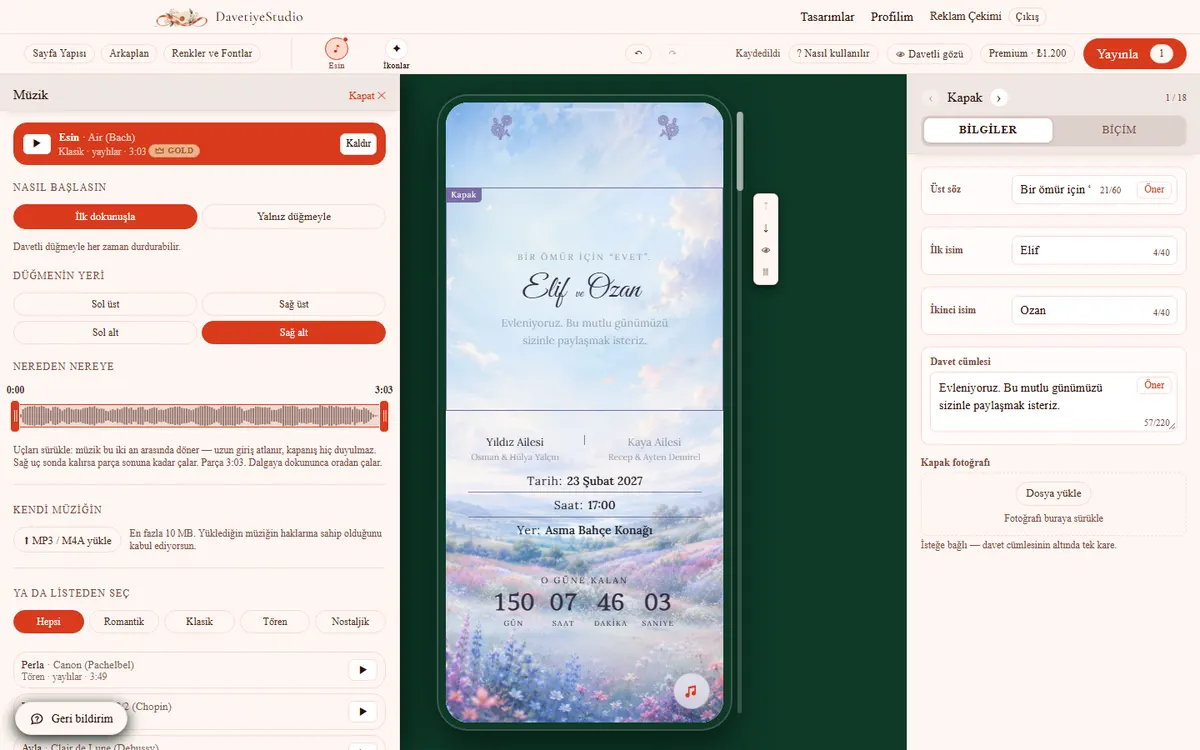
- Pick a track from the list. Listen with ▶.
- Or upload your own file (MP3 / M4A, up to 10 MB).
- How it starts: “On first tap” or “Only with the button”.
- Button position: any of the four corners.
- Drag both ends of the waveform. The music loops in that range.
Check and publish
Top bar: “Guest view” and “Publish”.
- “Guest view”: full screen, as a guest sees it. Press Esc to go back.
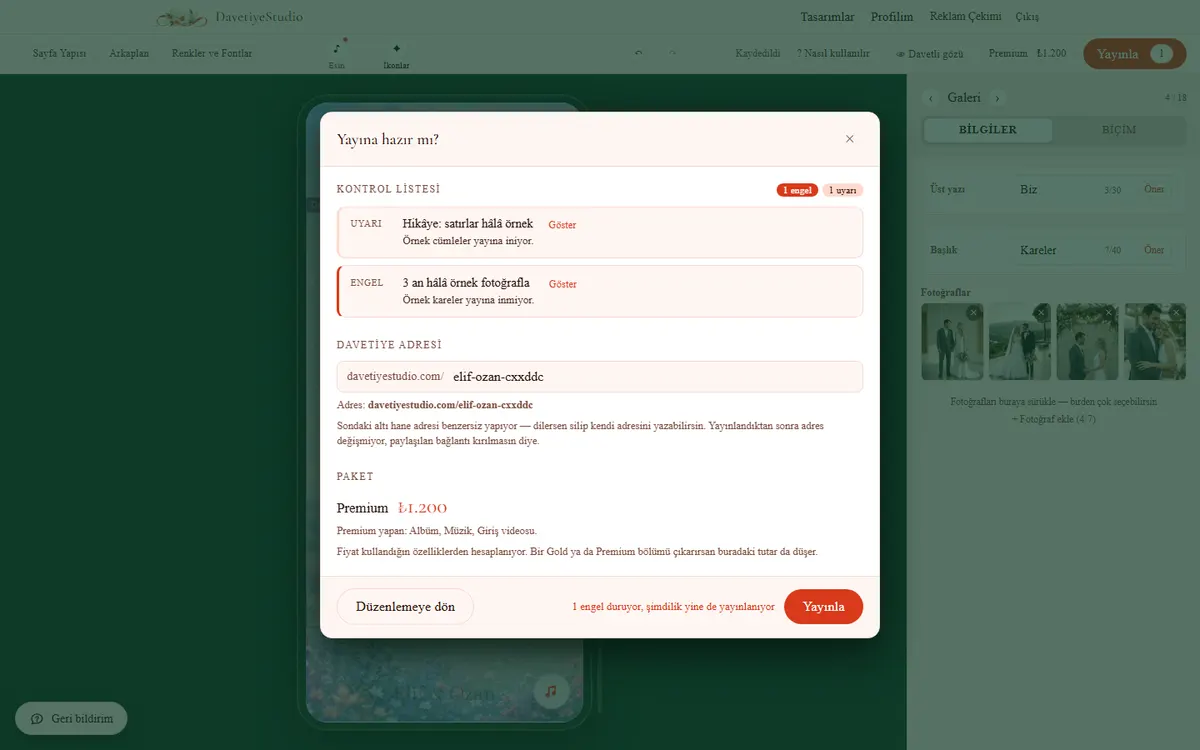
- Tap “Publish”. A checklist opens.
- Fix blockers before publishing. “Show” takes you there.
- Pick the address: at least three letters. It can’t be changed later.
- The summary shows the price. Tap “Pay with iyzico”; once approved, it’s live.
- Make changes later and publish again: same address, free on the same plan.
- Moving to a bigger plan? Pay only the difference: ₺300 per step.
- To unpublish or delete: My profile, in your invitation list.
Blocks · 23 items
In the Page structure panel, the list of blocks you can add.
| Block | What it does | Plan |
|---|---|---|
| Invitation: who, when | ||
| Cover | The first screen: top line, names, invitation line. | |
| Surprise | A thin strip under the cover: “keep it quiet”. | |
| Details | Families, date and time, and venue. | |
| Countdown | Time left until the event. | |
| Couple: who they are | ||
| Text | Free text: an interlude or a quote. | |
| Story | From the day we met to today, moment by moment. | Gold |
| Gallery | Photos of the couple, in the layout you choose. | Gold |
| The day: what happens | ||
| Schedule | The day’s schedule: time, title, icon. | |
| Menu | The meal: courses and dishes. | Gold |
| Venue: how do I get there | ||
| Location | Venue, address and directions. | |
| Reminder | Guests add the date to their calendar in one tap. | |
| Shuttle | Pickup points and times. | Gold |
| Prep: what should I get ready | ||
| Weather | Weather on the day; seasonal averages while it’s far off. | Gold |
| Dress code | What to wear. | Gold |
| Reply: what’s asked of me | ||
| Guess | Guests vote: girl or boy? | Gold |
| RSVP | Guests let you know whether they’re coming. | |
| Song | Guests write the song they want played. | Gold |
| Gift | A closed card; guests tap it to see the account details. | |
| Wishes | Gift ideas, with links if you like. | Gold |
| Needs | Guests say “I’ll get it”, no double gifts. | Gold |
| Afterward: what’s left | ||
| FAQ | Common questions: gifts, parking, kids. | Gold |
| Photo album | Guests leave photos, videos and voice notes; you download them. | Premium |
| Thank you | The invitation’s closing words, always shown. | |
If the Plan column is empty, that block comes with every invitation. A block marked Gold or Premium moves your price to that plan as soon as you add it. Remove it and the price drops back.
Full terms are on the legal information page. Stuck somewhere? Tell us with the feedback button in the corner of the screen. No sign-in needed.